Swift FM - Complete iOS Radio Streaming AppSwift FM - Complete iOS Radio Streaming App
Stream 50K+ Global Radio Stations with Complete iOS Radio Streaming App
Swift FM - Complete iOS Radio Streaming App
Stream 50K+ Global Radio Stations with Complete iOS Radio Streaming App
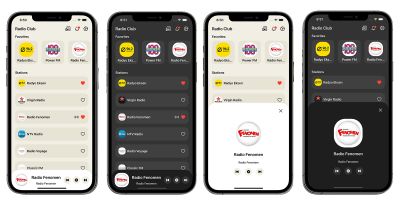
Screenshots
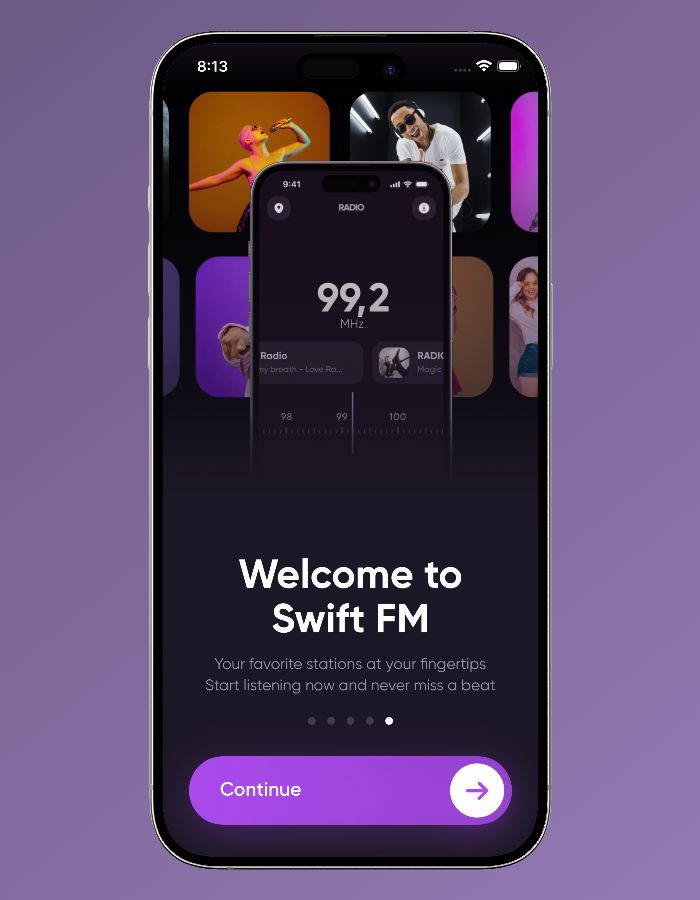
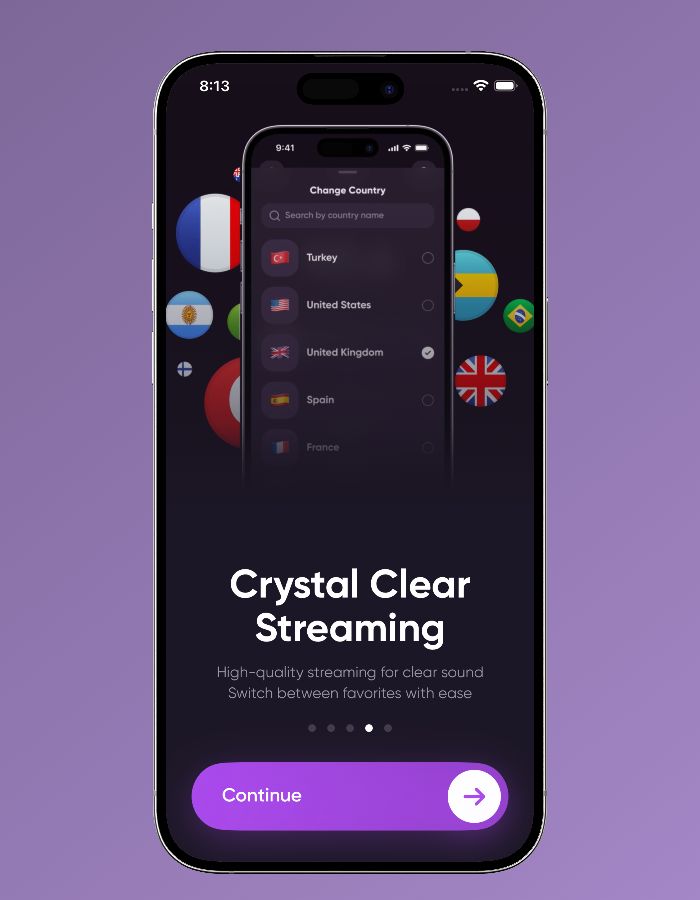
Overview
Launch your own global radio streaming app with this complete SwiftUI source code. Built with modern iOS technologies and proven monetization strategies, this app enables users to stream thousands of radio stations from 200+ countries worldwide. Perfect for entrepreneurs, developers, and agencies looking to enter the lucrative radio streaming app market.
Core Value Proposition
- Production-Ready: Complete iOS app with all features implemented, tested, and optimized for App Store submission
- Proven Revenue Model: Dual monetization strategy with subscription and advertising revenue streams
- Modern Technology: Built with latest SwiftUI, iOS 16+ features, and industry-standard MVVM architecture
- Global Reach: Access to thousands of radio stations from 200+ countries via free Radio-Browser.info API
Features
Core Functionality
- Global Radio Streaming
- Access thousands of radio stations worldwide
- 200+ countries supported
- Real-time station information via Radio-Browser.info API
- No API key required - completely free access
- Advanced Player Features
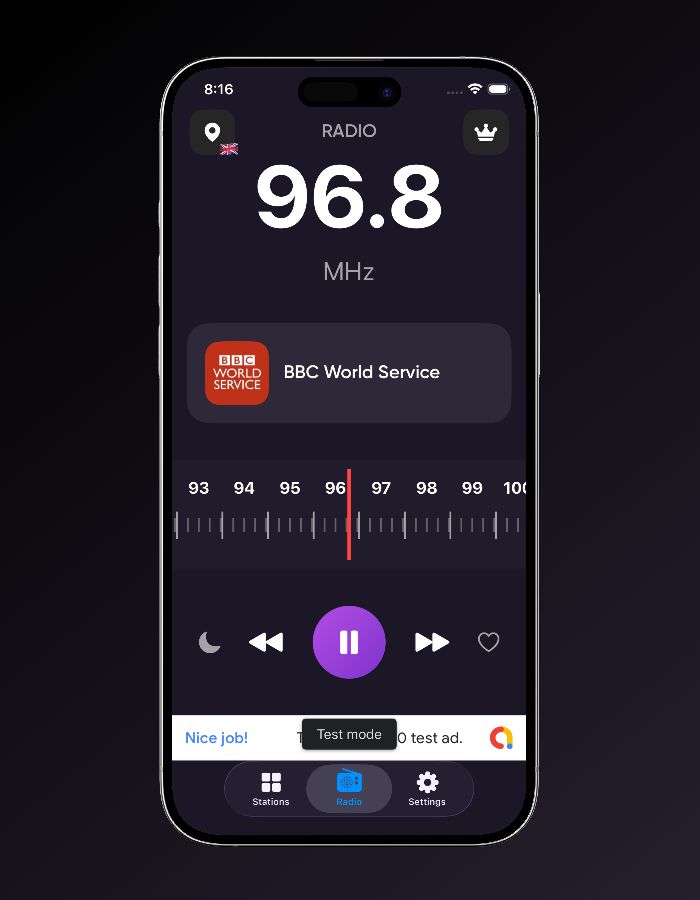
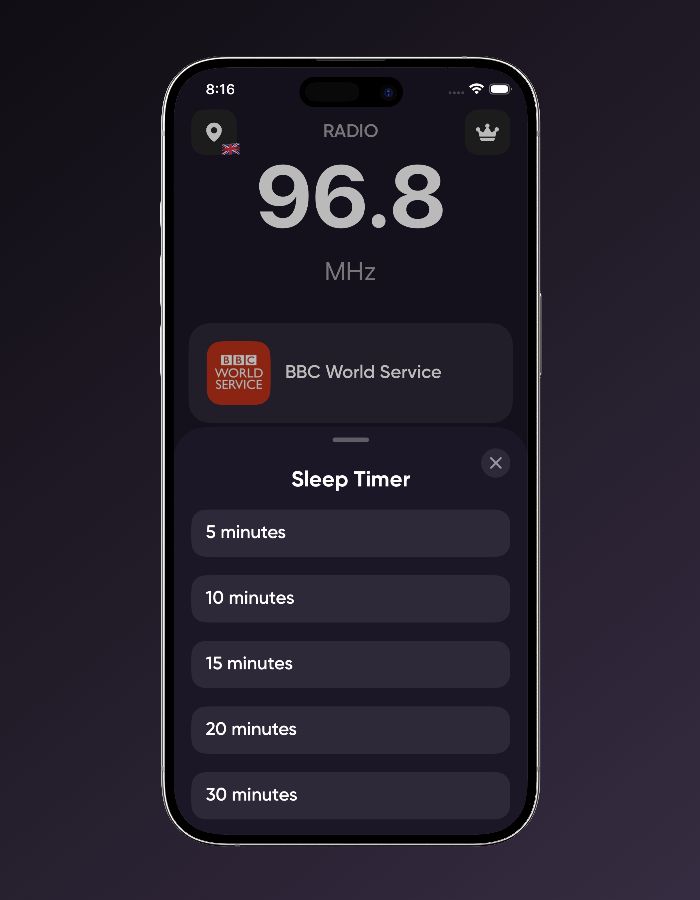
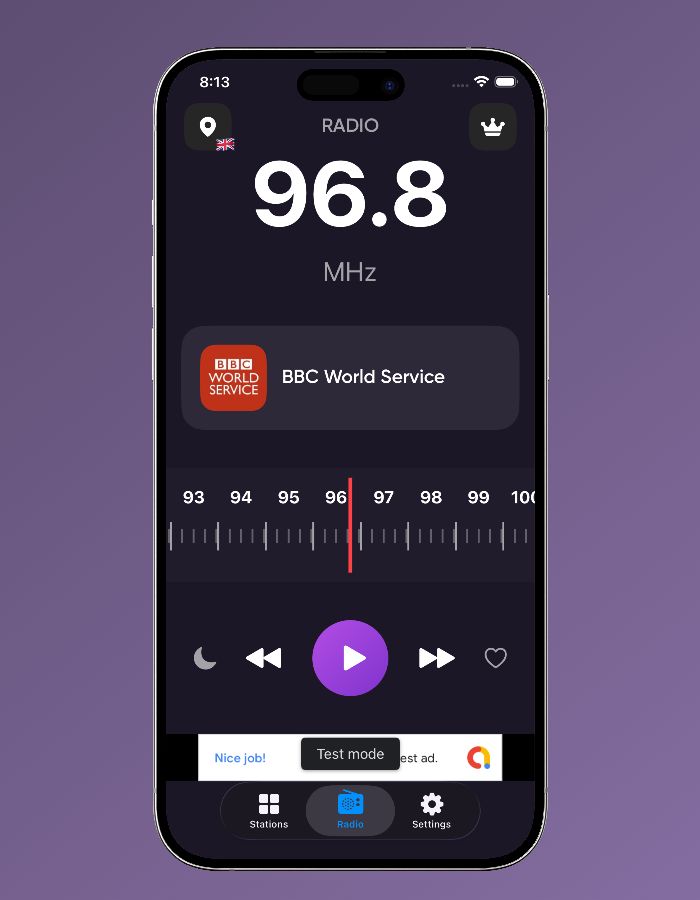
- Visual FM frequency tuner (87.0-108.0 MHz)
- Lock screen and Control Center playback controls
- Sleep timer functionality
- Previous/Next station navigation
- Background audio streaming
- User Management System
- Save favorite stations for quick access
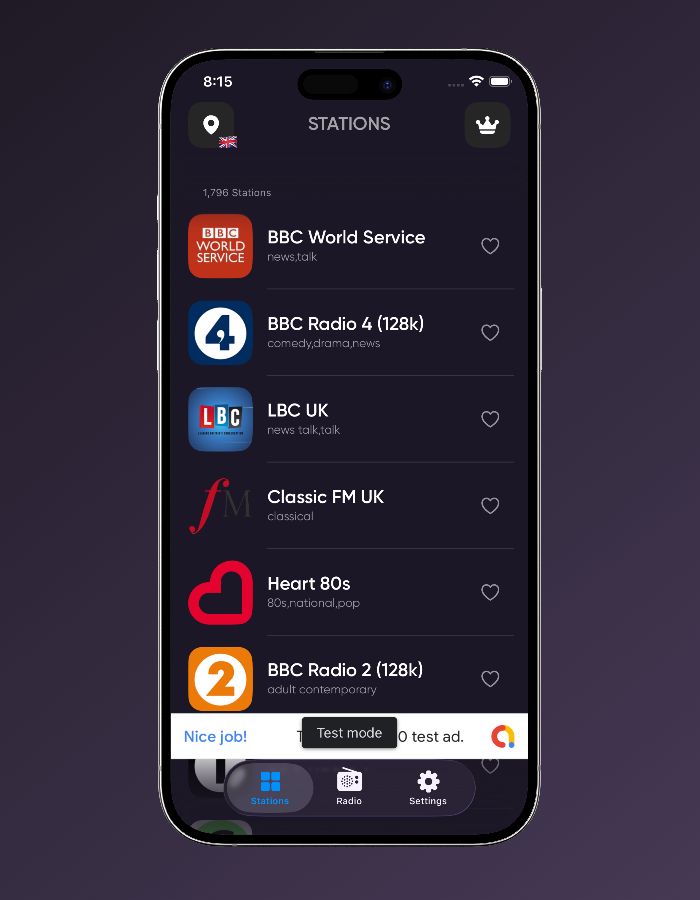
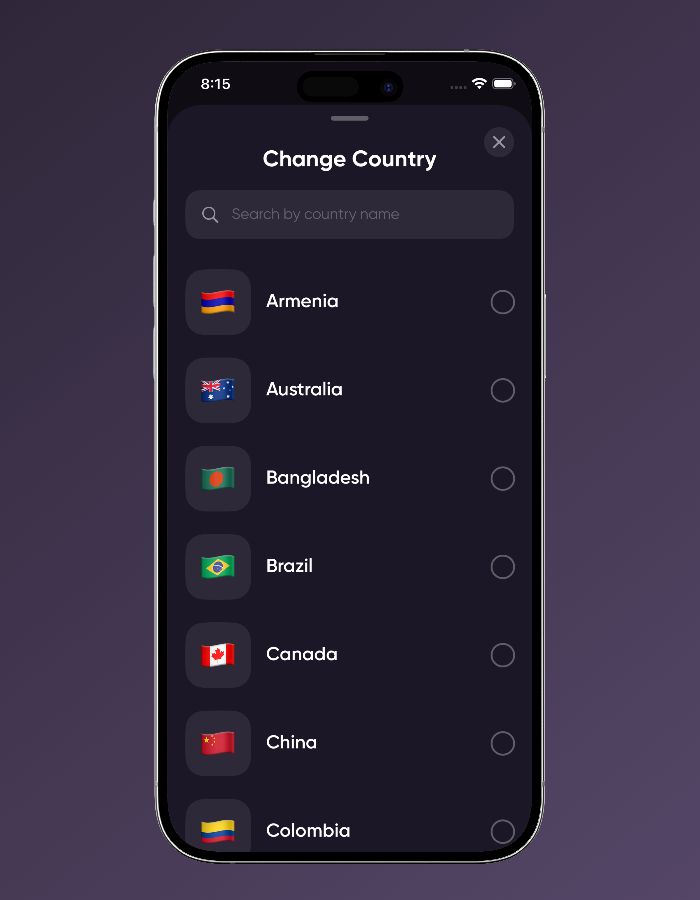
- Country-based station browsing with flag indicators
- Station history tracking
- Efficient local storage using UserDefaults
- Freemium Monetization
- Free access to all radio stations with ads
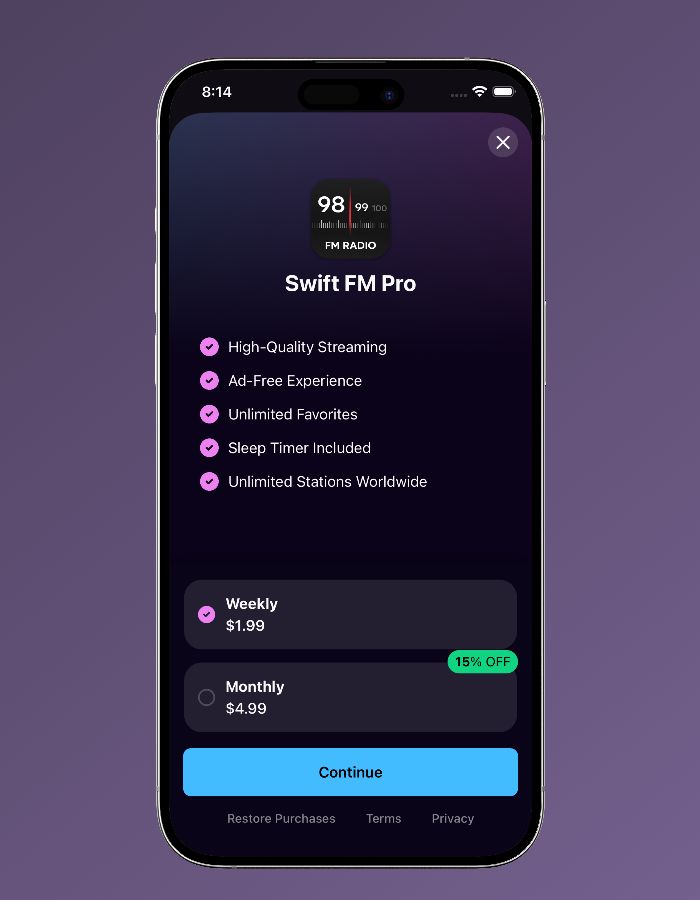
- Weekly subscription: $1.99/week (ad-free experience)
- Monthly subscription: $4.99/month (ad-free experience)
- Banner ads for continuous revenue
- Interstitial ads between actions
Technical Features
- Modern iOS Architecture
- Built with SwiftUI for declarative UI
- MVVM (Model-View-ViewModel) pattern
- iOS 16.0+ compatibility
- Swift 5.9+ with modern language features
- FRadioPlayer: Professional radio streaming engine
- RevenueCat: Subscription management platform
- AdMob/GoogleMobileAds: Advertising revenue system
- AVFoundation: Native audio playback framework
- User Experience Enhancements
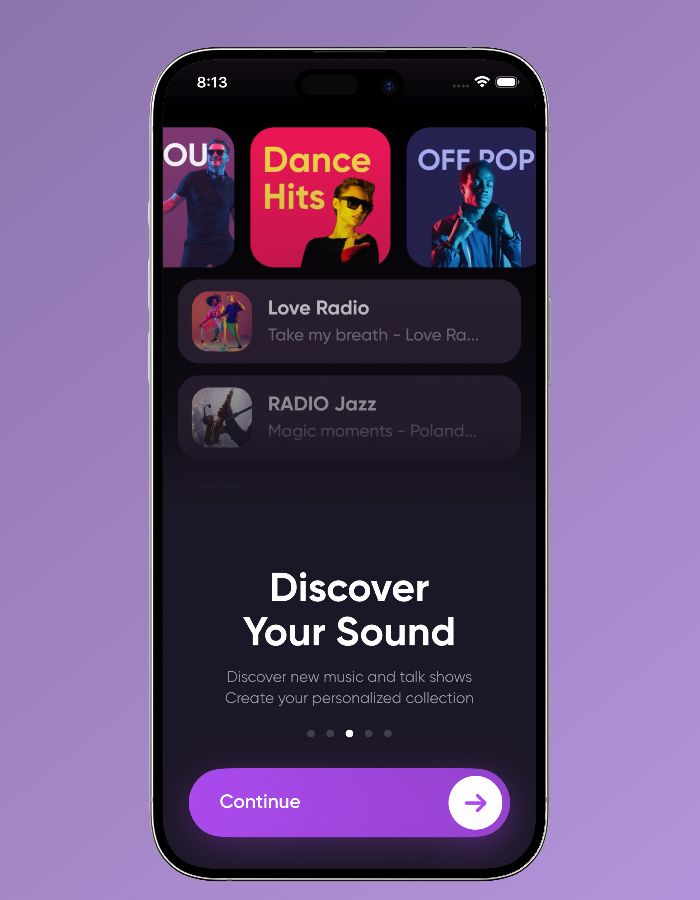
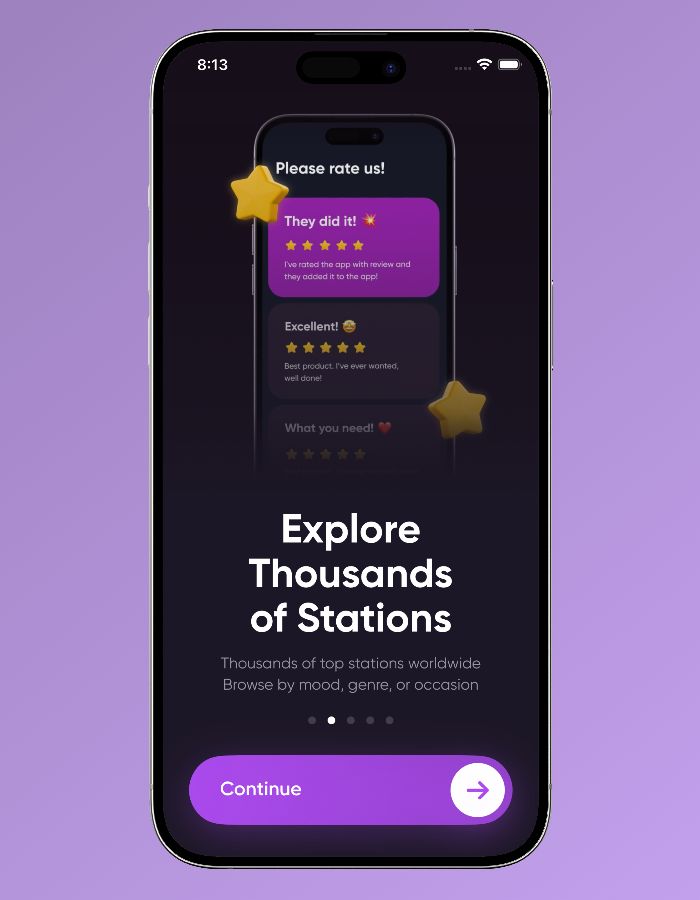
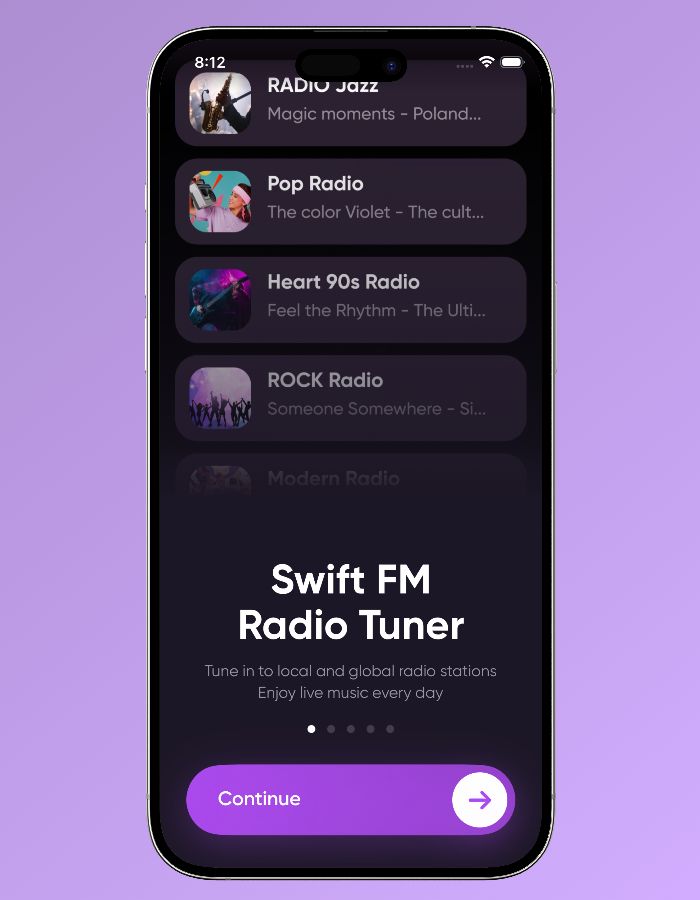
- Video-based onboarding (5 professional screens)
- Dark theme with gradient designs
- Intuitive and responsive layout
- Country selection interface with visual flags
- Station information display during playback
- App Structure & Screens
- Onboarding: Beautiful video-based welcome flow
- Radio Player: Main streaming interface with frequency tuner
- Station List: Browse stations organized by country
- Favorites: Quick access to saved stations
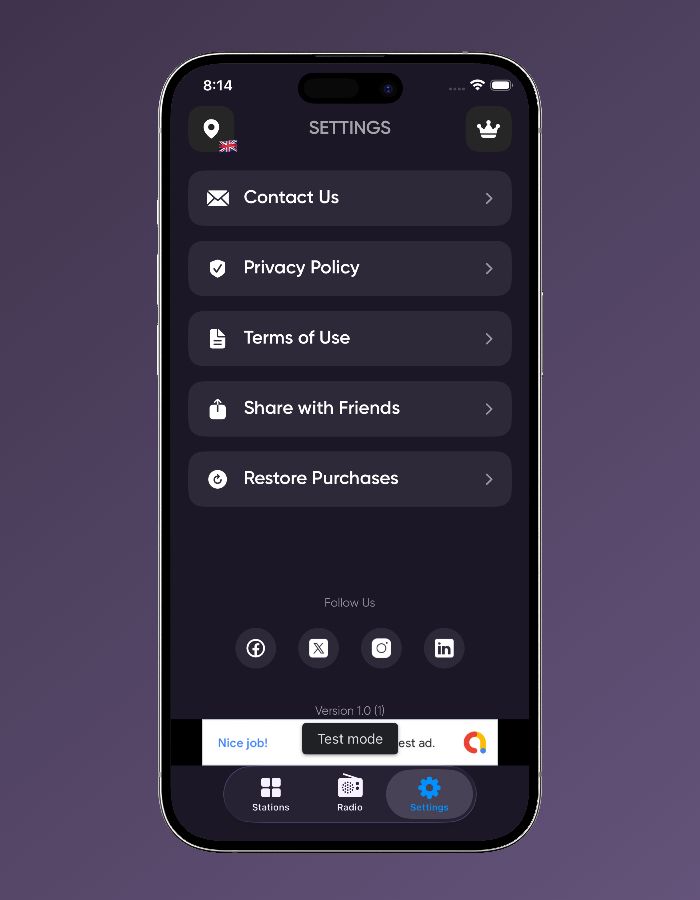
- Settings: Preferences, about, and account management
- Paywall: RevenueCat subscription upgrade interface
Performance Features
- Optimization & Compatibility
- Memory optimization for smooth performance
- Media Player Framework integration for system controls
- Support for iPhone 8+ and iPad 6th gen+
- Multiple language support
Requirements
Development Requirements
- Xcode: 15.0 or later
- macOS: 13.0 or later (Ventura+)
- Swift: 5.9 or later
- iOS Deployment Target: 16.0 or later
Hardware Compatibility
- iPhone: iPhone 8 or newer models
- iPad: iPad 6th generation or newer
- iOS Version: Requires iOS 16.0 or later
Third-Party API Services Required
1. Radio-Browser.info API
- Status: FREE
- API Key: Not required
- Purpose: Global radio station database access
- Features: Thousands of stations from 200+ countries
- Note: Works immediately without any API keys
2. RevenueCat Account
- Pricing: Free tier available
- Required For: Subscription management
- Setup Needed:
- Create an account at revenuecat.com
- Configure subscription products:
- Weekly plan: $1.99/week
- Monthly plan: $4.99/month
- Set up offerings and entitlements
- Purpose: Professional subscription handling and revenue tracking
3. AdMob Account
- Pricing: Free with revenue sharing
- Required For: Advertising revenue
- Setup Needed:
- Create an account at admob.google.com
- Add iOS app to dashboard
- Create ad units:
- Banner ad unit ID
- Interstitial ad unit ID
- Configure mediation (optional)
- Purpose: Display ads and generate ad revenue
4. Apple Developer Account
- Cost: $99/year
- Required For: App Store distribution
- Setup Needed:
- Create certificates and provisioning profiles
- Configure App Store Connect listing
- Set up in-app purchases
- Purpose: Official App Store submission and distribution
Instructions
Swift FM
Complete iOS Radio Streaming App Source Code - Swift & SwiftUI
by Ferdous Mahmud Akash v1.0
Welcome!
You've just purchased a complete iOS radio streaming app that lets users listen to thousands of radio stations from around the world. This guide will help you get it running quickly.
What You Get
- Complete iOS app source code
- Radio streaming from 200+ countries
- Favorites management
- Sleep timer functionality
- Subscription monetization
- Ad integration ready
App Overview & Features
What is Swift FM?
Swift FM is a premium iOS application that enables users to stream thousands of radio stations from around the world. Built with SwiftUI and following modern iOS development best practices, this app combines radio-browser.info API integration with a beautiful user interface and robust monetization strategies.
Key Features
- Global Radio Streaming - Access thousands of radio stations from 200+ countries
- Country Selection - Easy country browsing with flag indicators
- Favorites Management - Save and organize favorite stations
- Sleep Timer - Auto-stop playback after set duration
- Frequency Tuner - Visual FM tuner interface (87.0-108.0 MHz)
- Lock Screen Controls - Media controls on lock screen and Control Center
- Freemium Monetization - Pro subscription model with ad-free experience
- Ad Integration - AdMob integration with banner ads
- Modern UI - Dark theme with beautiful gradient designs
- Onboarding Experience - Video-based onboarding with 5 screens
- App Store Ready - Complete with settings, privacy policy, and social links
Technology Stack
SwiftUI, MVVM Architecture, Radio-Browser.info API, RevenueCat, Google AdMob, FRadioPlayer, AVFoundation
Quick Start Guide
This guide will help you get Swift FM running in under 30 minutes! Follow these simple steps and you'll have a working app ready for customization.
Before You Start - What You Need
Don't worry if you're new to this! Here's what you need:
- A Mac computer with macOS 13.0+ (Ventura or later) - iPhone apps can only be built on Mac computers, not Windows/PC
- Xcode 15.0+ (free from Mac App Store) - ###em/em###
- Apple Developer Account ($99/year) - Required to publish apps to App Store
- 30-45 minutes of your time
New to iOS Development?
No problem! This guide assumes you've never built an iPhone app before. We'll explain everything step-by-step in simple terms.
Step 1: Download & Open Project (5 minutes)
- Download the Swift FM zip file
- Extract the zip file to your Desktop
- Open Finder and navigate to the extracted folder
- Double-click on "Swift FM.xcodeproj"
- Wait for Xcode to open and load the project
Success: You should see the project files in Xcode's left sidebar
Step 2: Configure Your App Identity (5 minutes)
What is this step?
Every iPhone app needs a unique "identity" so Apple knows it's yours. Think of it like giving your app a unique name and address.
- Click on the blue "Swift FM" project icon at the top of the left sidebar in Xcode
- Select "Swift FM" under TARGETS (you'll see this in the main area)
- Change Bundle Identifier to something unique like:
com.yourname.swiftfm###em/em### - Select your Development Team from the dropdown ###em/em###
- Change Display Name if you want ###em/em###
Don't see your Development Team?
Go to Xcode menu → Preferences → Accounts → Add your Apple ID
Success: No red error messages in the "Signing & Capabilities" section
Step 3: Get API Keys (15 minutes)
What are API Keys?
Simple explanation: API keys are like passwords that let your app talk to other services. Think of them as:
- Radio Service: FREE - No API key needed! Uses radio-browser.info API
- Payment Service: To handle subscriptions (RevenueCat)
- Ad Service: To show ads and earn money (AdMob)
Good news: Radio stations work immediately without any API keys! You only need RevenueCat and AdMob keys for monetization.
3.1 Radio Stations - No API Key Needed!
Great news: Swift FM uses the free radio-browser.info API which doesn't require any API key. Stations are fetched automatically when users select a country!
API Endpoint: https://de2.api.radio-browser.info/json/stations/bycountry/{country}
3.2 RevenueCat API (For Subscriptions)
- Visit: revenuecat.com
- Click "Get Started Free"
- Create new app → select iOS
- Go to: API keys (look for this in the left menu)
- Copy the "Public App-specific API key"
- Create an entitlement named
pro(or updateproEntitlementIdentifierin AppConfig.swift to match your entitlement name)
3.3 Google AdMob (For Showing Ads)
###em/em###
- Visit: admob.google.com
- Click "Get Started"
- Add new app → select iOS platform
- Create 2 ad units:
- Banner ad (small ad at bottom of screen)
- Interstitial ad (full-screen ad that shows between actions)
- Copy both ad unit IDs (long text codes)
Tip: Keep all these keys in a text file as you get them - you'll need them in the next step!
Step 4: Add API Keys to App (5 minutes)
What are we doing?
Now we need to tell your app about those API keys you just got. We'll put them in a special file that stores all the app's settings.
- In Xcode, look at the left sidebar (called "Navigator")
- Find and click: Swift FM folder → Core folder → AppConfig.swift
- ###strong/strong### in the main area - you'll see lots of text/code
- Look for these lines (around line 15-25):
// MARK: - API Configuration (REQUIRED for monetization)
static let revenueCatApiKey = "YOUR_REVENUECAT_API_KEY_HERE"

// MARK: - AdMob Configuration (REQUIRED for ads)
static let InterstitialsAdsId = "YOUR_ADMOB_INTERSTITIAL_ID_HERE"
static let bannerAdsID = "YOUR_ADMOB_BANNER_ID_HERE"
static let proEntitlementIdentifier = "YOUR_ENTITLEMENT_IDENTIFIER"
How to Replace the Keys:
- Select the text between quotes (like "YOUR_REVENUECAT_API_KEY_HERE")
- Delete the selected text
- Paste your actual API key
- Make sure the quotes are still there!
Example:
Before: static let revenueCatApiKey = "YOUR_REVENUECAT_API_KEY_HERE"
After: static let revenueCatApiKey = "appl_SKsHlehkuCwFdrtUEWaSQTzPpRp"
Very Important: Keep the quotes around your keys and don't delete anything else!
Can't find the file?
Use the search box at the bottom of the left sidebar and type "AppConfig"
Step 5: Test Your App (5 minutes)
What's a Simulator?
A simulator is like a fake iPhone that runs on your Mac screen. It lets you test your app without needing a real iPhone!
- Look at the top toolbar in Xcode for a dropdown that might say "My Mac" or a device name
- Click the dropdown and select any iPhone simulator (like "iPhone 15" or "iPhone 14")
- Click the big Play button (▶) on the left side of the toolbar You can also press Cmd+R on your keyboard
- Wait patiently - the first time takes 1-3 minutes while Xcode "builds" your app Building = converting the code into an actual working app
- A simulator window will open that looks like an iPhone screen
- Your app will launch automatically in the simulator
- Try playing a radio station! Browse stations and tap one to play
- Test the frequency tuner by dragging the slider to tune stations
First Time Issues?
- Build failed? Make sure you added all API keys correctly (RevenueCat and AdMob)
- Simulator won't open? Try restarting Xcode
- App crashes? Check that your API keys don't have extra spaces
Congratulations!
Your AI Sticker Maker app is now working! You can:
- Test all features in the simulator
- Customize branding (see customization section below)
- Submit to App Store when ready
Troubleshooting for Beginners
Common First-Time Issues:
"Build Failed" or Red Errors in Xcode:
- Check all 4 API keys are entered correctly (no extra spaces)
- Make sure quotes are around each API key
- Try cleaning the project: Product menu → Clean Build Folder
Simulator Won't Open:
- Restart Xcode completely
- Try a different iPhone simulator (iPhone 14, iPhone 15, etc.)
- Check if you selected an iPhone simulator, not "My Mac"
AI Sticker Generation Fails:
- Check your internet connection - stations are fetched from radio-browser.info API
- Try selecting a different country if stations don't load
- Check that the radio-browser.info API is accessible
Can't Find AppSettings.swift File:
- Look in left sidebar: Swift FM → Core → AppConfig.swift
- Use search: Click the search icon in bottom-left of Xcode sidebar
- Type "AppConfig" to find the file
Your App is Working! Now What?
- Customize your branding (colors, icons, app name) - see section F below
- Set up App Store Connect for subscriptions - see section G below
- Test radio streaming on real iPhone via TestFlight - see section H below
- Submit to App Store and start earning! - see section I below
Marketing Tips for Beginners:
- Create social media accounts for your app
- Share radio station recommendations on Instagram/TikTok
- Ask friends to download and review your app
- Join radio and music app communities online
C) Complete Installation & Setup
Step 1: Project Setup
- Download and extract the project zip file from CodeCanyon
- Navigate to the extracted folder
- Open Swift FM.xcodeproj in Xcode
- Select the project in Xcode navigator
- Update Bundle Identifier to something unique like: com.yourcompany.swiftfm
- Select your Development Team from the dropdown
Step 2: Dependencies Installation
Dependencies should auto-install via Swift Package Manager. If issues occur:
- Go to File → Package Dependencies
- Reset Package Caches if needed
- Update to Latest Package Versions
Included Packages:
RevenueCat, GoogleMobileAds, FRadioPlayer
Note: Radio stations are fetched from the free radio-browser.info API - no API key required!
D) API Keys Configuration
Why Do I Need API Keys?
Simple explanation: Your app needs to connect to other services to work properly:
- Radio Service (radio-browser.info): FREE - No API key needed! Fetches radio stations from around the world
- Payment Service (RevenueCat): Handles user subscriptions
- Ad Service (AdMob): Shows ads to earn money
Good news: Radio stations work immediately without any API keys! You only need RevenueCat and AdMob keys for monetization.
Configure AppConfig.swift (The App's Settings File)
What is AppConfig.swift? It's a special file that stores all your app's important settings, like API keys, URLs, and configuration.
Where to find it: In Xcode, navigate to: Swift FM → Core → AppConfig.swift
// MARK: - API Configuration (REQUIRED for monetization)
static let revenueCatApiKey = "YOUR_REVENUECAT_API_KEY_HERE"

// MARK: - AdMob Configuration (REQUIRED for ads)
static let InterstitialsAdsId = "YOUR_ADMOB_INTERSTITIAL_ID_HERE"
static let bannerAdsID = "YOUR_ADMOB_BANNER_ID_HERE"
static let proEntitlementIdentifier = "YOUR_ENTITLEMENT_IDENTIFIER"

// MARK: - App URLs (Update these)
static let privacyPolicyURL = "https://google.com"
static let termsAndConditionURL = "https://google.com"
static let supportEmail = "[email protected]"
static let appStoreURL = "https://google.com"
Radio Stations - No API Key Needed!
Great news: Swift FM uses the free radio-browser.info API which doesn't require any API key. Stations are fetched automatically when users select a country!
API Endpoint: https://de2.api.radio-browser.info/json/stations/bycountry/{country}
Get RevenueCat API Key (Subscriptions)
- Sign up at revenuecat.com
- Create new app → select iOS
- Go to API keys → copy the Public App-specific API key
- Paste into revenueCatApiKey in AppConfig.swift
- Create an entitlement named pro (or update proEntitlementIdentifier to match your entitlement name)
Get AdMob IDs (Advertising)
- Sign up at admob.google.com
- Add new app → select iOS → enter your bundle ID
- Create ad units:
- Interstitial ad unit → copy ID to InterstitialsAdsId
- Banner ad unit → copy ID to bannerAdsID
Update Swift-FM-Info.plist with AdMob App ID (if required)
E) Basic Usage Instructions
How Your App Works (User's Perspective)
Understanding how users will interact with your app helps you test it properly and market it better.
Step-by-Step User Journey
Once your app is published on the App Store, here's exactly what your users will experience:
- Download & Launch - Users download your app from App Store and open it
- Onboarding Experience - Beautiful video-based onboarding screens (5 screens) explain the app
- Select Country - Users tap the location button to choose from 200+ countries
- Browse Stations - App loads radio stations for selected country from radio-browser.info API
- Play Radio - Users can:
- Tap a station from the list to play
- Use the frequency tuner (87.0-108.0 MHz) to tune stations
- Navigate with previous/next buttons
Manage Favorites - Users can favorite stations for quick accessSleep Timer - Set timer to auto-stop playback after specified durationLock Screen Controls - Control playback from lock screen and Control CenterUpgrade to Pro - Users can subscribe to remove ads and unlock premium features
How You Earn Money
- Subscriptions: Users pay for Pro subscription to remove ads
- Ads: Free users see banner ads, and you earn money from ad views
Testing Your App
Important: Always test these features after setup:
- Radio stations load for different countries
- Audio streaming works correctly
- Frequency tuner responds to user input
- Favorites save and load properly
- Sleep timer functions correctly
- Lock screen controls appear
- Ads display properly (for free users)
- Subscription paywall appears and works
F) Reskinning & Customization
Basic Branding
Update app identity in AppConfig.swift:
// MARK: - App URLs
static let privacyPolicyURL = "https://yourwebsite.com/privacy"
static let termsAndConditionURL = "https://yourwebsite.com/terms"
static let supportEmail = "[email protected]"
static let appStoreURL = "https://apps.apple.com/app/your-app-id"
static let socialMediaLinks = ["facebook": "...", "twitter": "...", "instagram": "...", "linkedin": "..."]
Update app name in Xcode project settings: Select project → Target → General → Display Name
Color Customization
Customize the color scheme by updating values in DesignSystem/Colors.swift:
// Background colors
static let backgroundColor = Color(hex: 0x0C0C0C)        // Main background
static let cardBackgroundColor = Color(hex: 0x1C1C1E)   // Card backgrounds

// Accent colors
static let primaryButtonColor = Color(hex: 0xD38306)     // Primary buttons
static let secondaryButtonColor = Color(hex: 0x34C759)   // Secondary buttons
App Icons
Replace app icons in Assets.xcassets/AppIcon.appiconset/
Required sizes: 16x16, 32x32, 64x64, 128x128, 256x256, 512x512, 1024x1024, plus various iPhone/iPad sizes
Tools: App Icon Generator, IconKitchen, Figma/Sketch
Onboarding Videos & Customization
Replace onboarding videos in Videos/ folder (1.mp4 through 5.mp4) and update text in Onboarding/OnboardingView.swift:
private let onboardingData: [(title: String, subtitle: String)] = [...] // Change to your desired limit
G) Monetization Setup
App Store Connect Configuration
- Create app in App Store Connect
- Configure In-App Purchases with product IDs (e.g., swiftfm_pro_weekly and swiftfm_pro_monthly)
- Weekly subscription (Auto-Renewable) - e.g., $1.99/week
- Monthly subscription (Auto-Renewable) - e.g., $4.99/month
Submit for review (required before testing)
RevenueCat Product Setup
- Go to RevenueCat dashboard
- Products → Add Product
- Link App Store products to RevenueCat
- Create Entitlement named pro (or update proEntitlementIdentifier in AppConfig.swift to match)
- Attach both products to this entitlement
Monetization Features
- Free Users: Full access to all radio stations, banner ads displayed, subscription paywall available
- Pro Users: No ads, ad-free listening experience, all premium features
H) Testing & Validation
Local Testing Checklist
- App launches without crashes
- Radio stations load for selected countries
- Audio streaming works correctly
- Frequency tuner responds to user input
- Favorites save and load properly
- Sleep timer functions correctly
- Lock screen controls appear
- Ads display correctly (for free users)
- Subscription paywall appears and works
- Country selection works
Production Testing
- Archive app in Xcode
- Upload to App Store Connect
- Add external testers via TestFlight
- Test on real devices
- Verify all integrations work in production
I) App Store Deployment
Pre-Deployment Checklist
- All API keys configured and working
- Bundle identifier unique and registered
- App icons for all required sizes
- Privacy policy and terms of use published
- In-app purchases configured and approved
Submission Process
- Select "Any iOS Device" as destination
- Product → Archive
- Distribute App → App Store Connect
- Configure App Store listing (name, description, screenshots)
- Submit for review
J) Technical Architecture
Technology Stack
| Frontend | SwiftUI | Modern declarative UI framework |
| Architecture | MVVM | Clean separation of concerns |
| Radio API | radio-browser.info | Free radio station database |
| Audio Player | FRadioPlayer | Radio streaming engine |
| Storage | UserDefaults | Favorites and settings persistence |
| Subscriptions | RevenueCat | Subscription management |
| Advertising | Google AdMob | Banner and interstitial ads |
Project Structure
Swift FM/
├── Core/ # Main app entry point & configuration
├── Views/ # SwiftUI views organized by feature
│ ├── Onboarding/ # Welcome screens
│ ├── Home/ # Main tab navigation
│ ├── RadioPlayer/ # Core sticker generation
│ ├── CountrySelectionView.swift # Generated sticker history
│ ├── Settings/ # App preferences
│ └── Paywall/ # Subscription upgrade
├── Utilities/ # Business logic and API integrations
├── Models/ # Data models and structures
├── Components/ # Reusable UI components
├── Videos/ # Swift extensions and utilities
└── Assets.xcassets/ # Images, icons, colors
K) Troubleshooting & Support
Common Issues
- Build Errors: Ensure all API keys are configured, check dependencies
- API Issues: Validate API keys, check network connectivity
- Runtime Issues: Check device permissions, monitor console logs
Debug Mode
Enable debug logging in AppConfig.swift:
static var isDebugLoggerEnabled: Bool {
#if DEBUG
return true
#else
return false
#endif
}
Getting Help
- Documentation - This comprehensive guide
- Code Comments - Detailed inline documentation
- Community Support - CodeCanyon comment section
- Email Support - Contact through CodeCanyon
L) Beginner's Glossary
New to App Development? Here's What Everything Means
Don't worry about memorizing these - just refer back when you see unfamiliar terms!
Basic Terms
- API Key: A password that lets your app talk to other services (like AI or payment systems)
- Bundle Identifier: Your app's unique "address" that Apple uses to identify it (like com.yourname.stickermaker)
- Xcode: Apple's free software for building iPhone apps (only works on Mac computers)
- Simulator: A fake iPhone that runs on your Mac screen for testing apps
- Building: The process of converting code into a working app
- Deployment Target: The oldest iPhone/iOS version your app will work on
App Store Terms
- App Store Connect: Apple's website where you manage your app before publishing
- TestFlight: Apple's system for testing apps before they go live on App Store
- In-App Purchase: When users buy things inside your app (like subscriptions)
- SKU: A unique code for each product you sell in your app
Technical Terms
- SwiftUI: Apple's modern way of designing app interfaces
- Framework: Pre-built code that adds features to your app
- Repository: A storage place for code (like a folder in the cloud)
- Archive: Package your app for submission to App Store
Business Terms
- Freemium: Business model where app is free but premium features cost money
- Paywall: Screen that asks users to pay for premium features
- Revenue: Money your app earns from subscriptions and ads
- ASO: App Store Optimization - making your app easier to find in searches
M) Technical Requirements
System Requirements
- macOS: 13.0+ (Ventura or later)
- Xcode: 15.0+ (latest version recommended)
- iOS: 16.0+ deployment target
- Swift: 5.0+
Device Compatibility
- iPhone: 8+ or newer
- iPad: 6th gen or newer
Privacy Requirements
- Photo Library Access - For saving stickers
- Network Access - For AI generation and ads
N) License & Commercial Use
License Terms
- Single Use License - One app per purchase
- Extended License - Multiple apps or client work
- No Redistribution - Cannot resell source code
Allowed Usage
- Publishing to App Store
- Monetization through subscriptions/ads
- Customization and branding
- Client development work (Extended License)
Not Allowed
- Reselling source code
- Creating competing templates
- Removing licensing terms
Swift FM - Complete iOS Radio Streaming App Source Code | Swift & SwiftUI is a complete, production-ready iOS app that combines global radio streaming with proven monetization strategies. With this documentation and the provided source code, you have everything needed to launch a successful radio streaming app on the App Store.
Support
For support with Swift FM, please refer to this documentation. Update the support email and website URLs in AppConfig.swift with your own contact information.
Email: [email protected]
Happy Coding
Other items by this author



|
iOS App Reskin Service
Have your App reskinned to meet your needs.
|
$499 | Buy now |
| Category | App Templates / iOS / Applications / Music |
| First release | 6 February 2026 |
| Last update | 6 February 2026 |
| Operating Systems | iOS 15.0 |
| Files included | .h, .xib, .swift |
| Tags | admob, streaming, audio player, music player, radio player, modern ui, dark mode, sleep timer, swiftui, internet radio, revenuecat, fm radio, favorites, station list |