Quick Quotation Maker WordPress PluginQuick Quotation Maker WordPress Plugin
Professional PDF Quote Builder & Sender for WordPress
Quick Quotation Maker WordPress Plugin
Professional PDF Quote Builder & Sender for WordPress
Screenshots




Overview
What is Quick Quotation Maker?
Quick Quotation Maker helps you create beautiful, professional quotations (price estimates) and send them to your clients — all from inside your WordPress website. No spreadsheets, no Word documents, no hassle.
Think of it as your personal quotation assistant that remembers your products, your customers, and your business details — so you can create a polished PDF quotation in under 2 minutes.
Perfect For
- 🏠 Contractors & Builders — Quote renovation jobs, material costs, labour charges
- ✏️ Freelancers & Designers — Send project estimates to clients
- 🏪 Shop Owners & Wholesalers — Provide bulk pricing with product photos
- 💼 Consultants & Agencies — Create professional service proposals
- 🔧 Service Providers — Plumbers, electricians, caterers, event planners — anyone who quotes a price before doing the work!
What Can You Do With This Plugin?
✅ Create Professional Quotations
Walk through a simple 4-step process — pick a customer, add products, choose terms, review, and you're done. A beautiful branded PDF is generated automatically.
✅ Manage Your Products & Services
Save all your products/services with prices, photos, descriptions, and tax rates. Next time you create a quotation, just search and select — everything fills in automatically.
✅ Keep a Customer Directory
Store all your client details in one place — names, phone numbers, emails, addresses. Select a customer in seconds when creating a quote.
✅ Send Quotations Instantly
Email the PDF directly to your client, or share it on WhatsApp with one click. No need to download, attach, and send manually.
✅ Track Everything from Your Dashboard
See how many quotations you've sent, which ones are expiring soon, your recent activity, and quick shortcuts to common tasks.
✅ Get Business Insights
Visual charts show you monthly trends — how many quotes you're sending, your revenue, your most popular products, and your best customers.
✅ Works for Any Country & Currency
Whether you use Dollars, Euros, Rupees, Pounds, or any other currency — and whether your tax is called GST, VAT, Sales Tax, or something else — this plugin adapts to your region.
✅ Team Access
Running a team? Grant access to your sales staff or managers without giving them full admin control.
Create Professional Quotations in Minutes, Not Hours
Quick Quotation Maker is a powerful WordPress plugin that lets you create, manage, and send beautifully branded PDF quotations — all from your WordPress admin dashboard. Perfect for freelancers, agencies, contractors, shop owners, and any business that needs to send price estimates to clients.
Why Quick Quotation Maker?
- 4-Step Quotation Wizard — Pick a customer, add products, set terms, review & generate. Done in under 2 minutes.
- Professional Branded PDFs — Your logo, company details, signature, and custom messages on every quotation.
- Product & Service Catalog — Save products with prices, images, descriptions, tax rates, and HSN/SKU codes. Reuse them instantly.
- Customer Directory — Store all client details. Select them in seconds when creating quotes.
- Email & WhatsApp Delivery — Send PDFs by email or share via WhatsApp with one click.
- Dashboard & Expiry Alerts — See stats, recent activity, and get notified before quotations expire.
- Reports & Analytics — Visual charts for monthly trends, top products, top customers, and revenue tracking.
- Flexible Tax & Discount Modes — Apply tax/discount per item or on the total. Supports GST, VAT, Sales Tax, or any label.
- Multi-Currency Support — USD, EUR, GBP, INR, JPY, or any custom currency symbol.
- Team Access Control — Grant plugin access to specific WordPress user roles.
Built With Modern Technology
- React 19 single-page application with lightning-fast UI
- Tailwind CSS + shadcn/ui for a clean, modern admin interface
- TCPDF for reliable, high-quality PDF generation
- WordPress REST API with nonce authentication for security
- Responsive design — works on desktop, tablet, and mobile
Quotation PDF Includes
- Company logo, name, address, phone, email, website
- Tax registration number (GST/VAT/Sales Tax)
- Customer billing & shipping details
- Product table with images, quantities, prices, discounts, taxes
- Subtotal, discount, tax, and grand total breakdown
- Custom top & bottom messages
- Payment instructions with bank details
- Terms & conditions
- Authorised signature with name & designation
- Page numbers for multi-page quotations
Settings & Customization
- 7-tab settings panel for complete control
- Business information & branding
- Contact person & signature upload
- Dynamic quotation number prefix with {YEAR} and {MONTH} placeholders
- Toggle product images, notes, HSN/SKU codes, payment instructions
- Multiple date formats
- Reusable terms & conditions templates
Perfect For
- Freelancers & designers sending project estimates
- Contractors & builders quoting renovation jobs
- Shop owners & wholesalers providing bulk pricing
- Consultants & agencies creating service proposals
- Service providers — plumbers, electricians, caterers, event planners
Requirements
- WordPress 6.0 or higher
- PHP 7.4 or higher
Support
We provide dedicated support via WhatsApp, email, and phone. Average response time: under 1 hour during business hours.
Complete video guide
Features
✅ 4-step quotation creation wizard
✅ Product catalog management with images
✅ Customer directory
✅ Reusable terms & conditions templates
✅ Professional branded PDF generation
✅ Email delivery with PDF attachment
✅ WhatsApp sharing
✅ Interactive dashboard with expiry alerts
✅ Reports & analytics with visual charts
✅ 7-tab settings for full customisation
✅ Role-based team access
✅ Flexible discount modes (per item / on total)
✅ Flexible tax modes (per item / on total)
✅ Dynamic quotation number prefixes
✅ Payment instruction support on PDFs
✅ Product images, notes, and HSN/SKU codes
✅ Multiple date formats and currencies
✅ Responsive design (works on desktop, tablet, and mobile)
Requirements
Requirements
- WordPress 6.0 or higher
- PHP 7.4 or higher
Instructions
How to Install
Option A: Upload from WordPress (Recommended)
- Download the
quick-quotation-maker.zipfile - In your WordPress admin, go to Plugins → Add New → Upload Plugin
- Choose the ZIP file and click Install Now
- Click Activate
- You'll see "Quotation Maker" appear in your left sidebar menu — you're ready!
Option B: Upload via FTP
- Unzip the downloaded file
- Upload the
quick-quotation-makerfolder to your/wp-content/plugins/directory - Go to Plugins in WordPress and click Activate next to Quick Quotation Maker
💡 What happens when you activate? The plugin automatically sets up everything it needs — database tables, a secure folder for your PDF files, and the menu. You don't need to do anything technical.
Getting Started — Your First Quotation in 5 Minutes
Here's the fastest path from installation to sending your first quotation:
1️⃣ Fill in Your Business Details
Go to Quotation Maker → Settings → Business Information and enter your company name, logo, email, phone, and website. This info appears on every quotation you send.
2️⃣ Add a Product or Service
Go to Products → Add Product and enter something you sell — a product name and price is all you need to start.
3️⃣ Add a Customer
Go to Customers → Add Customer and enter a client's name and phone number.
4️⃣ Create Your Quotation
Go to Quotations → New Quotation and follow the steps:
- Pick your customer
- Add your product(s), set quantities
- Optionally add terms & an expiry date
- Review and click Generate Quotation
5️⃣ Send It!
Download the PDF or email it directly to your client. Done! 🎉
Settings — Customise Everything to Fit Your Business
The Settings page has 7 tabs on the left side. Let's walk through each one:
🔹 General — Who Can Use the Plugin?
By default, only the website administrator (you) can access the plugin. If you have team members with WordPress accounts, you can check their roles here to give them access too.
Example: You have a "Sales Manager" role on your site — check that box, and they'll see the Quotation Maker menu when they log in.
🔹 Business Information — Your Company Identity
This is what appears on every quotation you send:
| What to Fill | Why It Matters |
|---|---|
| Business Logo | Appears at the top of your quotation PDF |
| Business Name (required) | Your company name on the header |
| Email (required) | So clients know how to reach you |
| Phone (required) | Shown on the quotation header |
| Address | Your office/shop address |
| Website (required) | Your business website link |
💡 Upload a clear, high-quality logo. It makes your quotations look professional and trustworthy.
🔹 Contact Person — Who Signs the Quotation?
Enter the name and title of the person authorising the quotations. You can also upload a signature image — it will appear at the bottom of every PDF, giving your documents a personal, professional touch.
| What to Fill | Example |
|---|---|
| Full Name (required) | John Doe |
| Designation | Sales Manager, Director, Owner |
| Signature Image | A scanned or digital signature |
🔹 Tax Settings — Your Regional Tax Info
Different countries call their tax different things. This tab lets you set:
| What to Fill | Examples |
|---|---|
| Tax Label | "GST" (India/Australia), "VAT" (Europe/UK), "Sales Tax" (USA) |
| Tax Number | Your business tax registration number |
This information appears on your quotation header so your clients see you're tax-compliant.
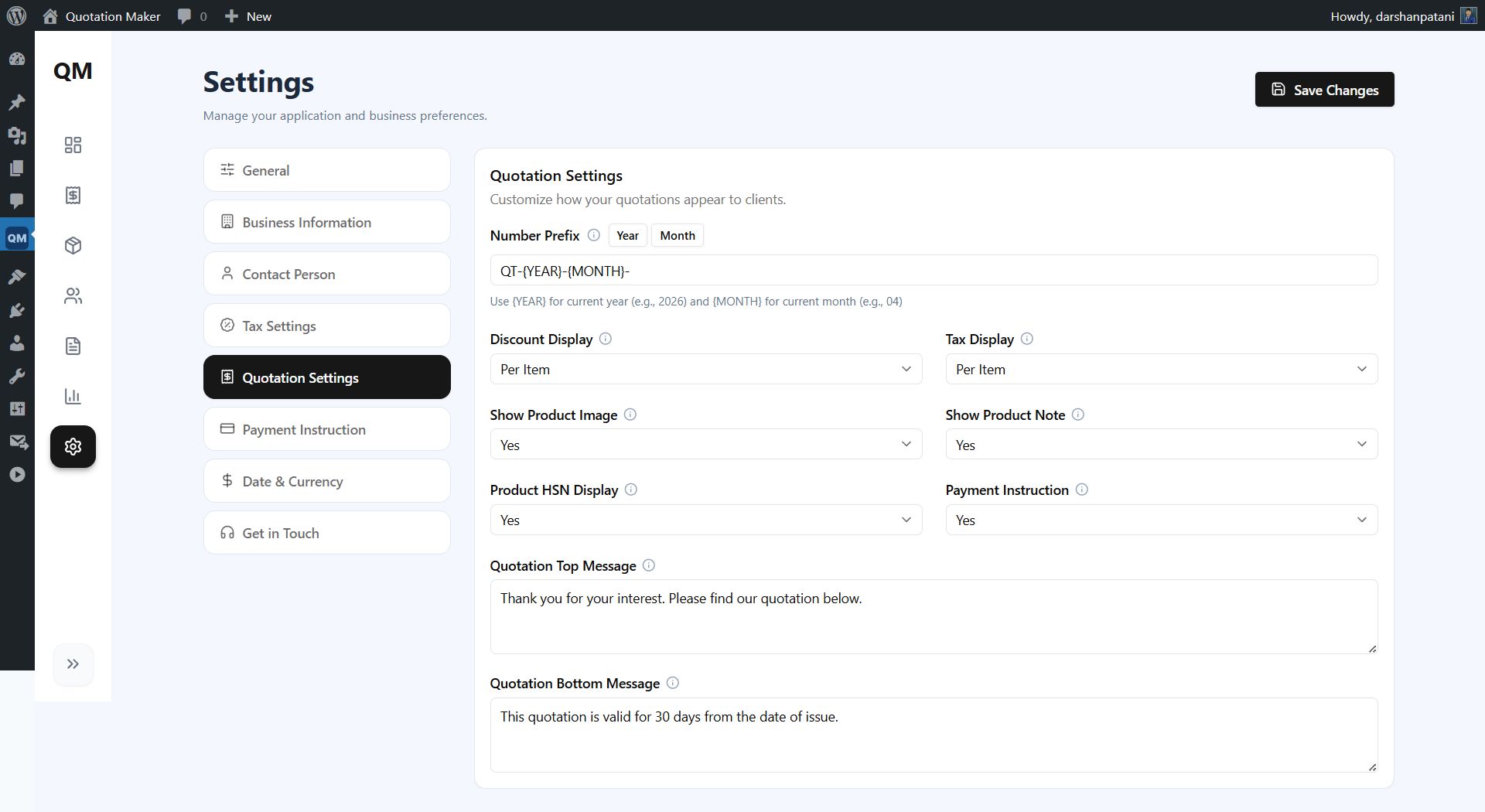
🔹 Quotation Settings — How Your Quotes Look & Work
This is the most powerful tab. It controls the structure of your quotations:
Quotation Number Format
Set a prefix for your quotation numbers. Use {YEAR} and {MONTH} to automatically insert the current year and month.
Example: PrefixQT-{YEAR}-{MONTH}-generates numbers likeQT-2026-04-0001
Discount Mode — Per Item or On Total?
- Per Item → Each product in your quote has its own discount field. Great if different items have different discounts.
- On Total → One single discount applied to the whole quotation. Simpler for flat discounts like "10% off everything."
Tax Mode — Per Item or On Total?
- Per Item → Each product has its own tax rate. Perfect if some items are taxed at 5% and others at 18%.
- On Total → One tax rate for the whole quotation.
Display Toggles
| Toggle | When to Enable |
|---|---|
| Show Product Image | If you sell physical products and want photos in the PDF |
| Show Product Note | If you need descriptions below each item (great for services) |
| Show HSN/SKU Code | If your country requires tax codes on invoices (like India's HSN) |
| Payment Instruction | If you want to show your bank details on the PDF |
Custom Messages
- Top Message → Appears above the product table. Example: "Thank you for your interest. Please find our quotation below."
- Bottom Message → Appears below the totals. Example: "This quotation is valid for 30 days from the date of issue."
🔹 Payment Instruction — Your Bank Details
If you turned on "Payment Instruction" in the previous tab, fill in your banking details here:
- Account Holder Name
- Account Number
- Bank Name
- Additional message (e.g., "Please include the quotation number as payment reference.")
These details appear on the PDF so your clients know exactly how to pay you.
🔹 Date & Currency — Regional Formatting
Date Format — Choose how dates appear on your quotations. Pick the format your clients are familiar with (e.g., DD/MM/YYYY for UK/India, MM/DD/YYYY for USA).
Currency — Click one of the quick buttons ($, £, €, ¥, ₹, etc.) or type any custom currency symbol or code. This is used throughout the plugin wherever money amounts are shown.
🔹 Get in Touch — Contact the Developer
Need help? Have a feature request? This tab has direct contact links — WhatsApp (fastest), phone, and email.
📌 Don't forget to click "Save Changes" at the top-right corner after configuring your settings!
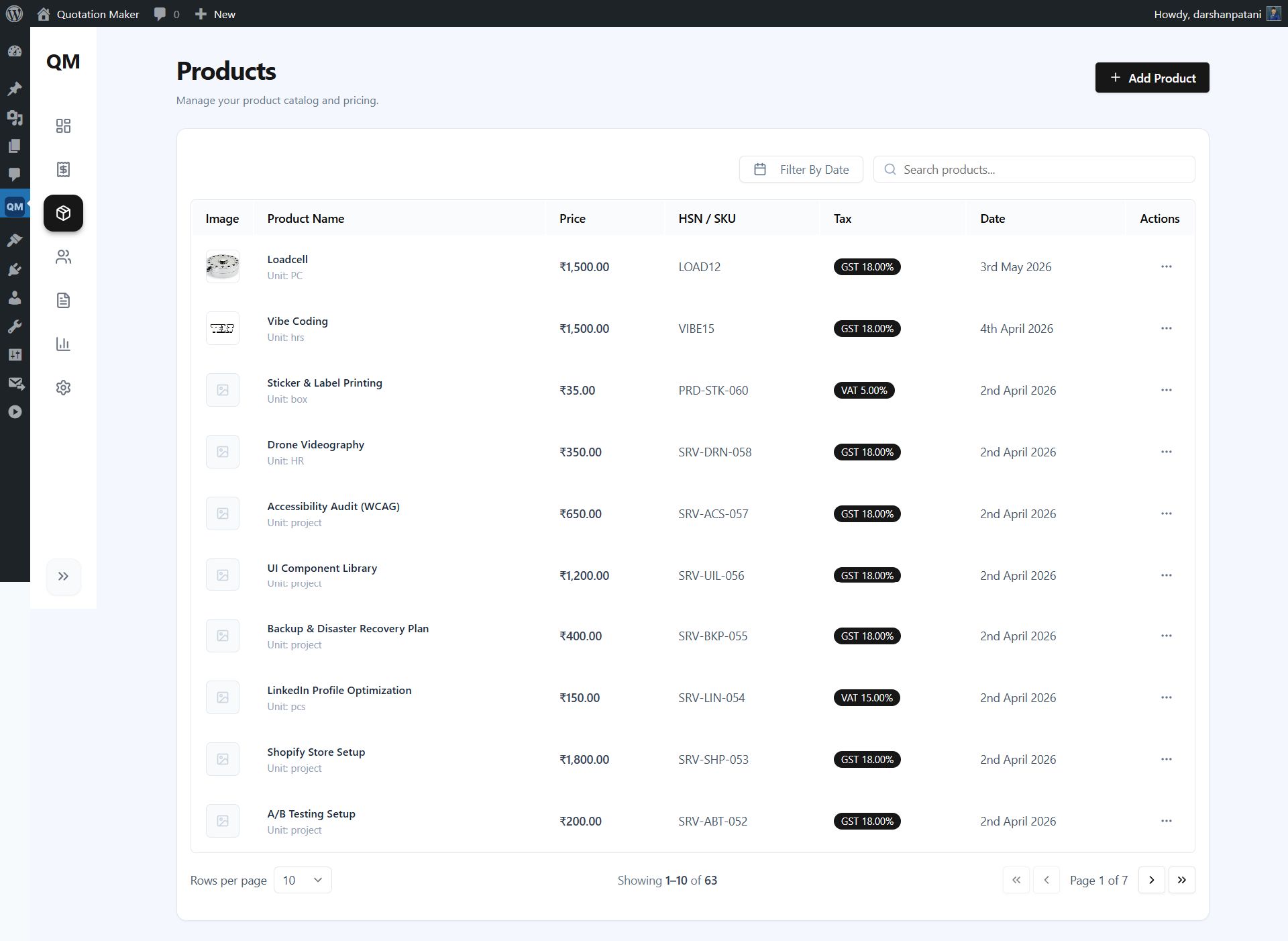
Managing Your Products
Think of this as your product/service catalog. Anything you commonly sell or quote can be saved here.
Adding a Product
Click Add Product and fill in:
| Field | What It Means | Example |
|---|---|---|
| Name (required) | What you're selling | "Website Design", "Marble Tiles", "Consultation Hour" |
| Price (required) | How much per unit | 500.00 |
| Unit | How it's measured | pcs, kg, hours, sqft, lot |
| Image | A photo of the product | Upload JPG, PNG, or WEBP |
| Note | Extra details/description | "Includes 5 revision rounds" |
| HSN/SKU | Tax or inventory code | "9983", "SKU-4521" |
| Discount | Default discount | 10% or $50 off |
| Tax Title & Rate | Tax name and percentage | "GST @18%", 18 |
💡 Why bother saving products? Because next time you create a quotation, you just search for the product name, click it, and all the details fill in automatically. No retyping!
Editing & Deleting Products
- Click the pencil icon to edit — the form opens with all existing values
- Click the trash icon to delete — don't worry, quotations you've already created keep their product data
Managing Your Customers
Adding a Customer
Click Add Customer and fill in:
| Field | What It Means |
|---|---|
| Name (required) | Your client's name |
| Phone (required) | Their mobile number |
| Company | Their company name (if any) |
| For sending quotations by email | |
| Address Lines | Billing address (appears on quotation PDF) |
| Shipping Address | If different from billing |
| Other Info | Any extra notes about this client |
Searching
Type in the search bar to find customers by name, company, email, or phone number.
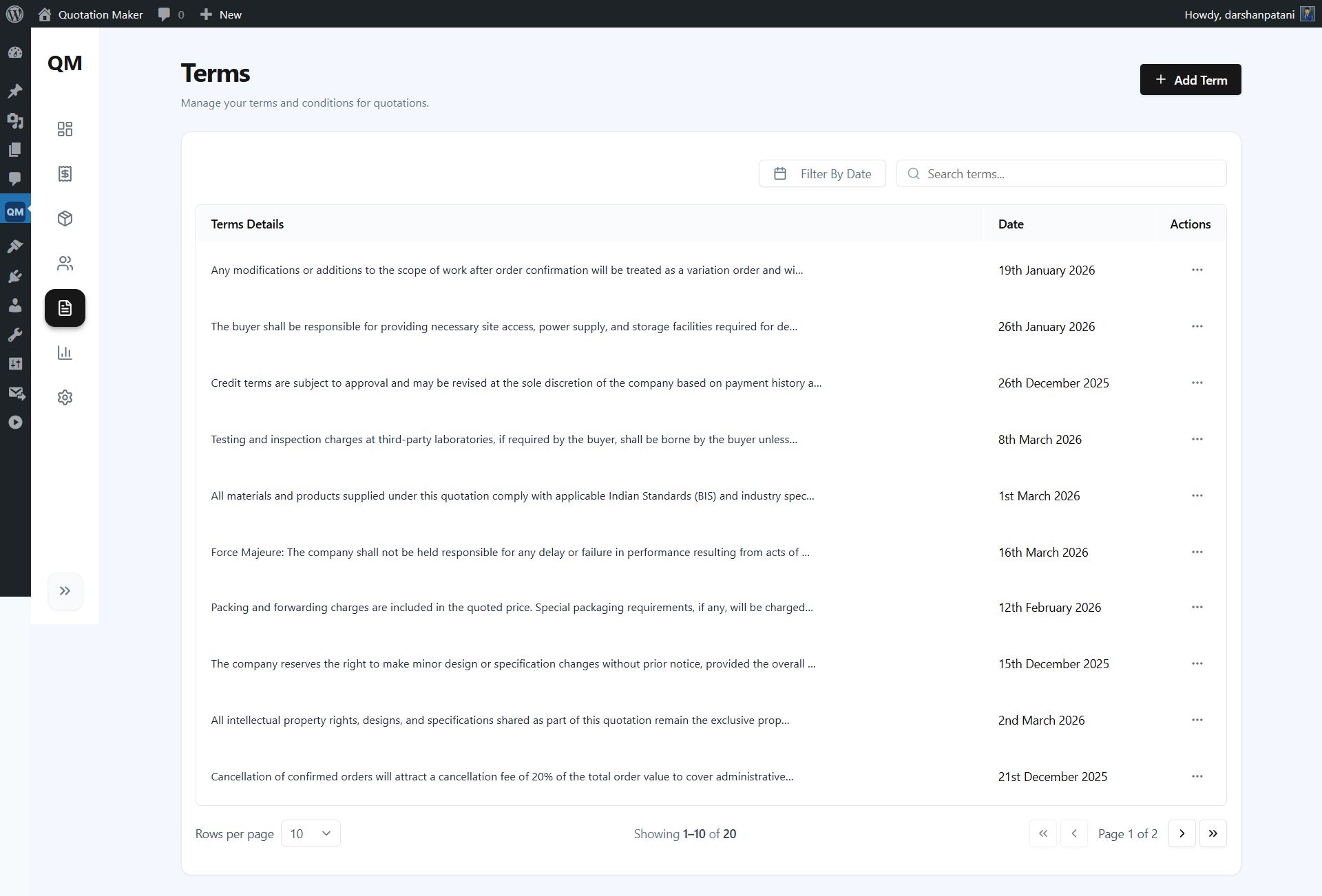
Terms & Conditions — Reusable Templates
Instead of typing the same terms on every quotation, create reusable templates here.
Ideas for Terms Templates
- "Payment: 50% advance, balance before delivery"
- "Prices valid for 15 days from quotation date"
- "Delivery within 7-10 business days after confirmation"
- "1-year warranty on all products"
- "Transportation charges extra"
When you create a quotation, you'll see checkboxes to select which terms to include. Mix and match as needed for each client.
Creating a Quotation — Step by Step
Step 1: Pick Your Customer 👤
- Type in the search box to find an existing customer
- Click on their name to select them
- Their details appear in a confirmation card below
- Don't have the customer yet? Click "Quick Add" to create one right here — no need to leave the page
Step 2: Add Your Products 📦
- Search for products from your catalog
- Click a product to add it to the quotation table
- Adjust the quantity, price, discount, or tax if needed for this specific quote
- Add as many products as you need
- The totals update automatically as you make changes
The totals box shows:
- Subtotal (before any discounts or taxes)
- Discount amount
- Tax amount
- Grand Total (what the client pays)
Step 3: Terms & Details 📋
- Check the boxes next to the terms you want to include
- Set a "Valid Until" date — the expiry date of this quotation
- Add any notes or special instructions
Step 4: Review & Finish ✅
- See a complete summary of everything — customer, products, totals, terms
- Save as Draft — If you're not ready yet and want to come back later
- Generate Quotation — Creates the final PDF right away
After Generating 🎉
You'll see a success screen with options to:
- Download the PDF to your computer
- Send it by Email directly to your client
- Share on WhatsApp with one click
- Create Another quotation
- Go Back to Quotations list
Managing Your Quotations
The Quotation List
Shows all your quotations with the quote number, customer name, amount, status, and date.
Quotation Statuses Explained
| Status | What It Means |
|---|---|
| 🟡 Draft | You're still working on it — no PDF created yet |
| 🔵 Sent | The quotation has been emailed or shared with the client |
| 🟢 Accepted | Great news — the client said yes! |
| 🔴 Rejected | The client declined this quote |
| ⚫ Expired | The validity period has passed |
What You Can Do With Each Quotation
| Action | What Happens |
|---|---|
| Edit | Opens the quotation wizard so you can make changes |
| Download PDF | Saves the PDF file to your computer |
| Send Email | Emails the PDF to the client (status auto-changes to "Sent") |
| Change Status | Manually mark as Accepted, Rejected, or Expired |
| Delete | Permanently removes the quotation and its PDF |
Filtering
- Use the status tabs at the top to show only Draft, Sent, Accepted, etc.
- Use the search bar to find quotes by number, customer name, or company
- Use the date filter to find quotes from a specific date
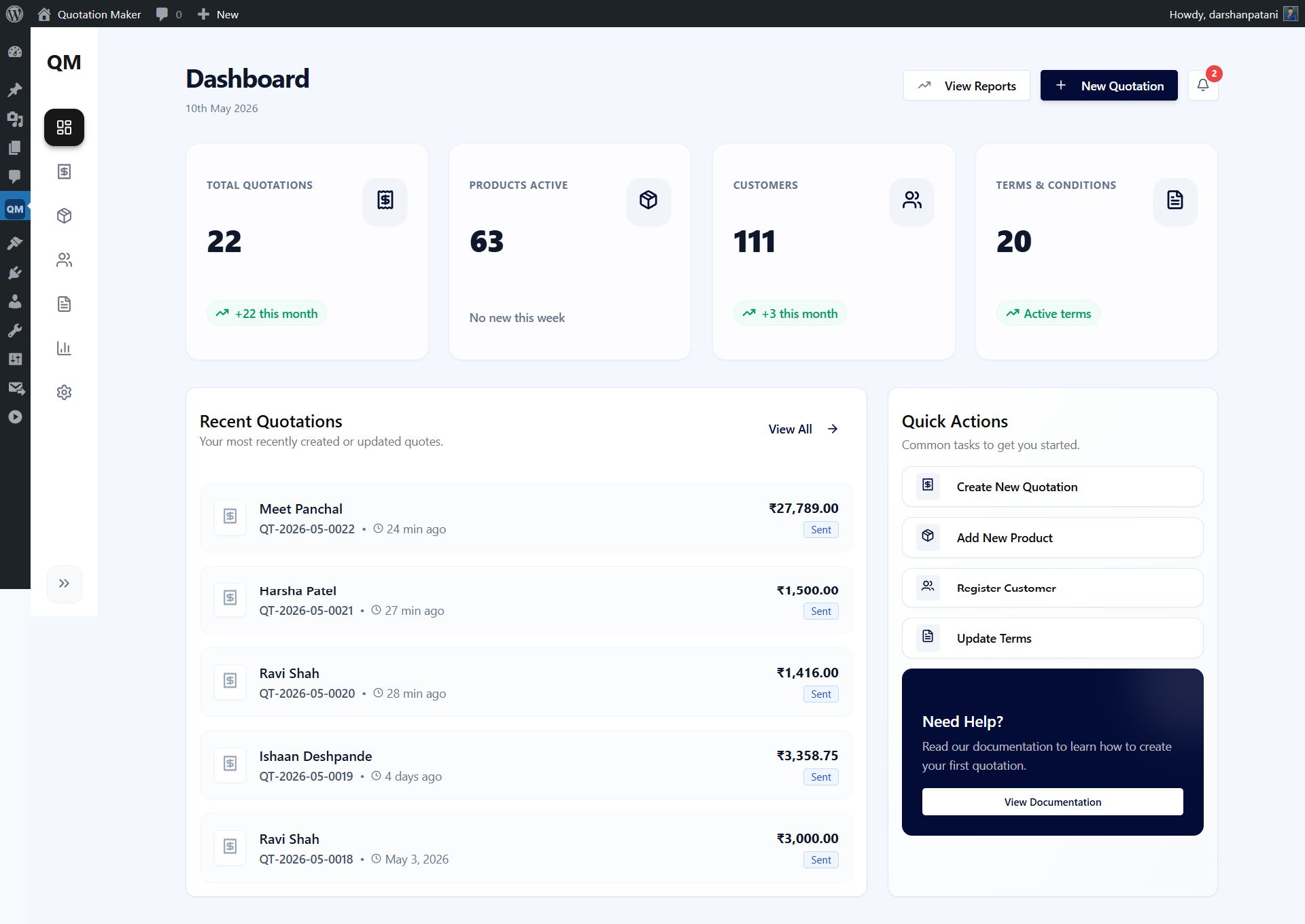
Your Dashboard — Everything at a Glance
When you open the plugin, the first thing you see is the Dashboard:
📊 Stats Cards (Top Row)
Four cards showing your totals — quotations, products, customers, and terms — each with a trend indicator like "+5 this month" so you can see your growth.
Click any card to jump directly to that section.
📋 Recent Quotations
Your 5 most recent quotes with customer name, amount, status, and when they were created. Click any quote to open it.
🔔 Expiry Alerts
See the bell icon in the top-right? If any quotations are expiring within the next 3 days, it shows a red badge. Click it to see which clients need follow-up — this way you never miss a deal!
⚡ Quick Actions
Shortcut buttons on the right side:
- Create New Quotation
- Add New Product
- Register Customer
- Update Terms
⚠️ Setup Reminder
If you haven't filled in your business details yet, you'll see a friendly reminder at the top asking you to complete your settings.
Reports — Understand Your Business Better
Go to Reports in the sidebar to see visual charts of your business activity.
How to Use
- Pick a start date and end date
- Click Apply
- See your data visualized in charts
What You'll See
Summary Cards — Total quotations, total revenue, products used, and customers served for your chosen period.
Monthly Charts — Bar charts showing trends over time:
- How many quotations you sent each month
- How much revenue you generated
- Which products were used
- How many customers you served
Top 5 Rankings — Your most popular products and most active customers, ranked by quotation frequency.
💡 Use case: Check your reports at month-end to see which products are selling best and which clients are most active.
What Does the PDF Look Like?
Your quotation PDF is a clean, professional document that includes:
- Header — Your logo, company name, address, phone, email, website, and tax number
- Customer Details — Their name, company, address, and contact info
- Quote Info — Quotation number, date, and validity date
- Custom Top Message — Your personalised greeting (if set in Settings)
- Product Table — All items with quantities, prices, discounts, taxes, and line totals
- Totals Box — Subtotal, discount, tax, and grand total clearly laid out
- Custom Bottom Message — Your closing note (if set in Settings)
- Payment Instructions — Bank details so clients know how to pay (if enabled)
- Terms & Conditions — The terms you selected for this quotation
- Signature Block — Contact person's name, designation, and signature image
- Page Numbers — On every page for multi-page quotations
Emailing Quotations
When you send a quotation by email:
- Your client receives a professionally designed email with your company branding
- The email includes the quotation number, grand total, and validity date
- The PDF is attached to the email
- The quotation status automatically changes to "Sent"
⚠️ Important: Your WordPress site needs to be able to send emails. If emails aren't going through, we recommend installing a free plugin like WP Mail SMTP to ensure reliable delivery.
Giving Team Members Access
If you have staff who need to create quotations:
- Go to Settings → General tab
- Check the box next to their WordPress role (e.g., Editor, Shop Manager)
- That's it — when they log in, they'll see the Quotation Maker menu
💡 Note: Administrators always have access. Your team members can do everything you can within the plugin, but they don't get any extra WordPress admin powers.


| Category | Plugins / WordPress / Miscellaneous |
| First release | 16 May 2026 |
| Last update | 16 May 2026 |
| Supported CMS | WordPress 6.0, WordPress 6.1, WordPress 6.2, WordPress 6.3, WordPress 6.4, WordPress 6.5, WordPress 6.6, WordPress 6.7, WordPress 6.8 |
| Files included | .php, .css, .html, Javascript .js |
| Tags | business, invoice, crm, client management, pdf, quote, Quotation, estimate, Billing, proposal, PDF Generator, price quote, wordpress quotation plugin, quotation maker, woocommerce alternative |