AI Content Humanizer And Cleaner Pro WordPressAI Content Humanizer And Cleaner Pro WordPress
Bridge the gap between AI efficiency and human authenticity.
Screenshots

Overview
⚡ Why Your Site Needs This
In a digital landscape where search engines prioritize E-E-A-T (Experience, Expertise, Authoritativeness, and Trustworthiness), raw AI content can be a liability. Whether you are managing guest contributors or using AI to scale your own production, this tool ensures your voice remains authentic and your SEO remains safe.
🛡️ The 9-Layer Detection Shield
Most detectors rely on a single metric. We use nine. Our plugin runs a "jury" system where different algorithms vote on the content's origin:
- Pattern Recognition: Analyzes perplexity and burstiness (sentence variance).
- Stylometric Fingerprinting: Identifies the unique mathematical "shimmer" left by LLMs.
- ML Classifiers: Deep learning models trained on millions of human vs. AI samples.
- Semantic Flow: Checks for the logical "sameness" often found in machine output.
- Probability Mapping: Identifies the "most likely next word" patterns typical of GPT models.
✨ Core Features That Set Us Apart
Who Is This For?
- SEO Agencies: Protect your clients' rankings from low-quality AI flags.
- Niche Site Owners: Scale content safely without losing the "human" feel.
- Editors: Instantly verify if your freelancers are using undisclosed AI tools.
- Academic Portals: Ensure original thought and integrity in submissions.
⚙️ Technical Specifications & Security
We built this with a "clean-code-first" philosophy. No bloat, no security holes.
- Lightweight Performance: Under 100KB footprint; won't slow down your WP-Admin.
- Enterprise Security: Full Nonce verification, REST API integration, and Role-based permissions.
- Privacy Centric: Your data moves directly from your server to OpenAI. We never sit in the middle.
- Zero Database Bloat: We use efficient Meta storage rather than creating unnecessary custom tables.
Features
🔄 One-Click Humanization (GPT-4 Powered)
Don't just find the problems—fix them. Our "Humanize" engine goes beyond simple word swapping. It:
- Injects natural sentence variation.
- Removes "AI-isms" (e.g., "In the ever-evolving landscape...", "pivotal," "tapestry").
- Adjusts tone to be conversational and engaging while preserving your core message.
🛠️ Dual-Interface Workflow
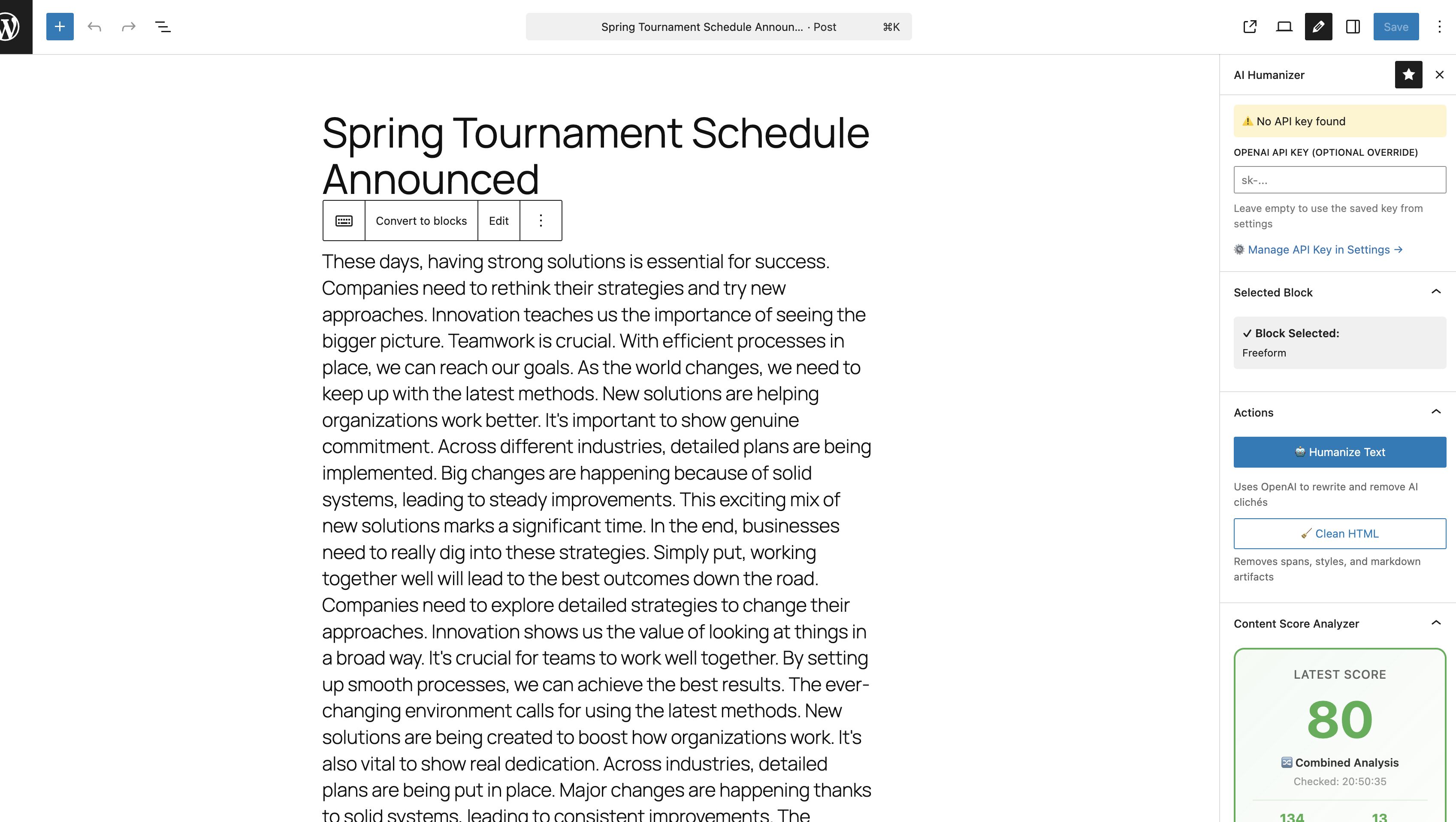
- ###b/b### Perfect for editors. Analyze and humanize while you draft without leaving the post screen.
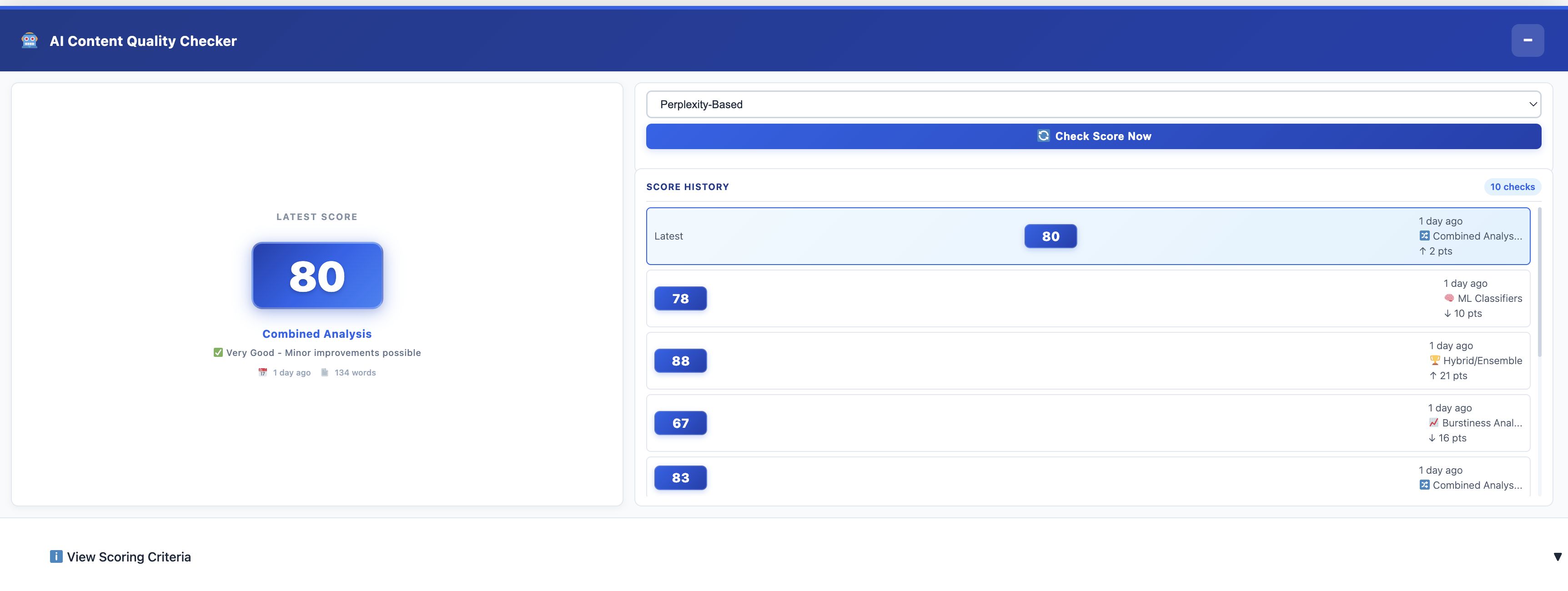
- Frontend Analysis Panel: A sleek, admin-only overlay that allows you to check live pages instantly.
📈 Intelligent Analytics & History
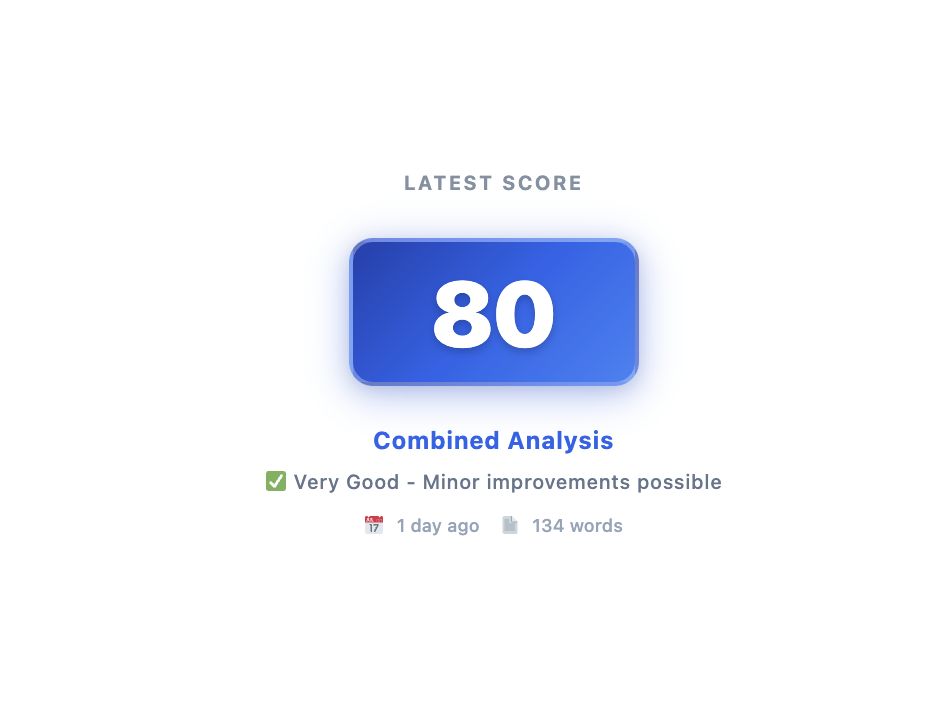
Keep a paper trail of your content quality. The plugin stores a history of your last 10 scans, showing score trends, word counts, and the specific algorithms used.
💼
Requirements
| Requirement | Minimum Version |
| WordPress | 6.0+ |
| PHP | 7.4+ (8.x fully supported) |
| API | OpenAI API Key (GPT-4 recommended) |
Instructions
To ensure your users have a smooth experience and to satisfy CodeCanyon reviewers, your installation instructions need to be clear and step-by-step.
Since your plugin requires an OpenAI API Key, I’ve included a specific section for that to prevent support tickets.
🛠️ Installation Instructions
1. Automatic Installation (Recommended)
- Log in to your WordPress Admin Dashboard.
- Navigate to Plugins > Add New.
- Click the Upload Plugin button at the top of the page.
- Choose the
ai-content-humanizer-pro.zipfile from your computer. - Click Install Now.
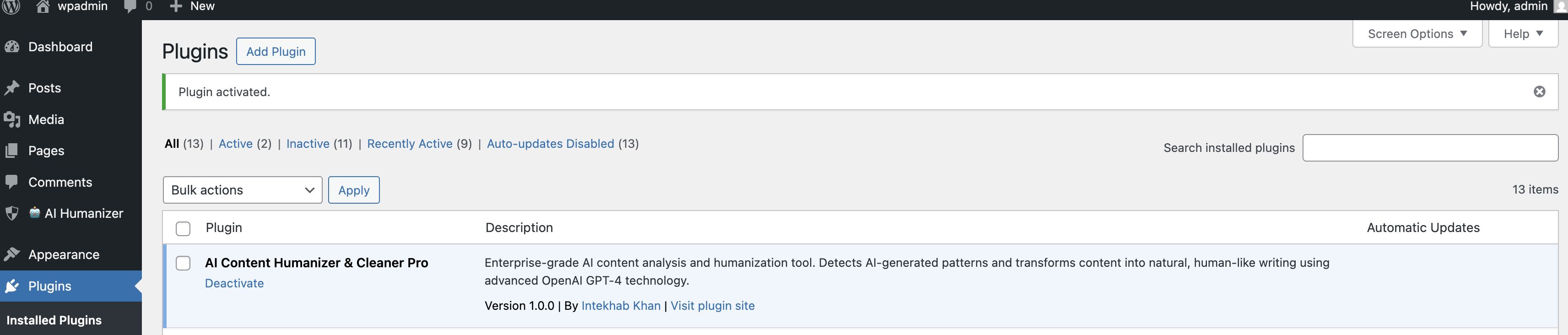
- After the installation is complete, click Activate Plugin.
2. Manual Installation (via FTP)
- Unzip the
ai-content-humanizer-pro.zipfile on your computer. - Using an FTP client (like FileZilla), connect to your web server.
- Navigate to the
/wp-content/plugins/directory. - Upload the unzipped
ai-content-humanizer-profolder to this directory. - Go to your WordPress Dashboard, navigate to Plugins > Installed Plugins, and click Activate under the plugin name.
🔑 Configuration (OpenAI API Setup)
Once activated, you must connect the plugin to OpenAI to enable the Humanizer features:
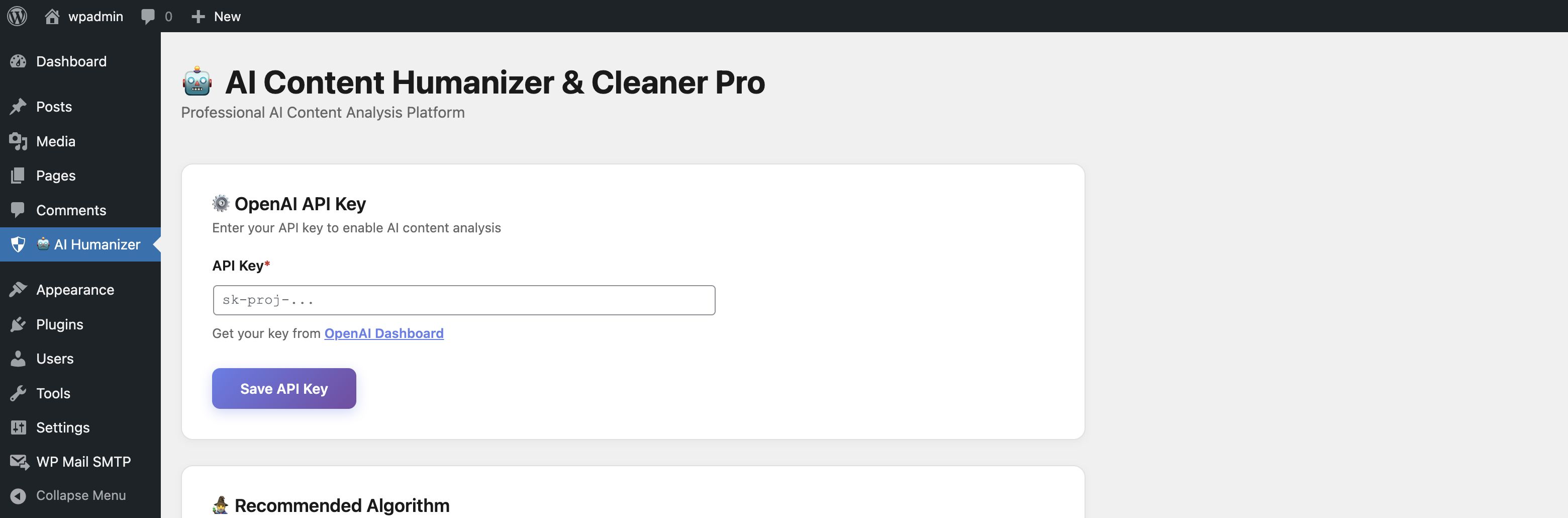
- Go to the new AI Humanizer menu in your WordPress sidebar.
- Navigate to the Settings tab.
- Get your API Key: * Sign up or log in at
- platform.openai.com.
- Go to the API Keys section and create a "New Secret Key."
- Note: Ensure your OpenAI account has a positive credit balance.
- Paste your key into the OpenAI API Key field in the plugin settings.
- Select your preferred model (e.g., GPT-4 or GPT-4o) and click Save Settings.
📖 How to Use
- In Gutenberg: Open any post or page. Look for the AI Humanizer Sidebar icon in the top right corner. Click it to analyze or humanize your content in real-time.
- On the Frontend: If logged in as an administrator, look for the floating Analysis Panel at the bottom of your live posts to check AI scores on the fly.
- History: View your previous 10 analysis results in the History tab of the plugin dashboard.
❓ Troubleshooting
- "API Key Error": Verify that your key is correct and that you have enough credits in your OpenAI billing account.
- "Plugin won't upload": Ensure you are uploading the installable zip file, not the entire "All Files & Documentation" package from CodeCanyon.
- "No sidebar visible": Ensure you are using the WordPress Block Editor (Gutenberg). The sidebar is not compatible with the Classic Editor.
Other items by this author






| Category | Plugins / WordPress / AI |
| First release | 14 January 2026 |
| Last update | 14 January 2026 |
| Supported CMS | WordPress 6.0, WordPress 6.1, WordPress 6.2, WordPress 6.3, WordPress 6.4, WordPress 6.5, WordPress 6.6, WordPress 6.7, WordPress 6.8 |
| Files included | .php, .css, .html, Javascript .js |
| Tags | copywriting, content marketing, gutenberg, seo tool, writing assistant, gpt-4, wordpress ai, text analysis, ai detector, humanize ai, content cleaner, plagiarism detector, bypass ai detection, ai rewriter, stealth writer |